















 Shop
Shop


Question
How can I turn off or disable the iPhone lock screen so I don’t need to enter a passcode every time?--- Question from Apple Community
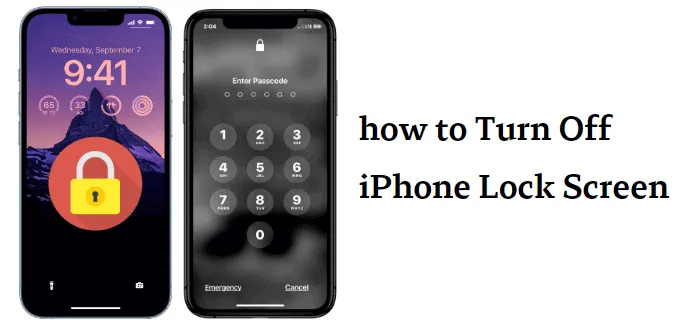
Sometimes, you may have encountered question like above, your iPhone lock screen may be unresponsive, or you forgot screen passcode, and want to turn off screen lock on iphone.
This article outlines 5 methods that allow you to easily disable your screen lock. During this process, you may be prompted to provide your Apple ID for verification; we have also prepared corresponding solutions to assist you.
In this article:
- How to Turn Off Lock Screen on iPhone [With Passcode]
- How to Turn off iPhone Screen Lock (Forgot Passcode/Password)
- Any Other Methods to Remove Lock Screen on iPhone?
- Delete Screen Lock on iPhone via Recovery Mode
- Turn Off Screen Lock on iPhone via Erase iPhone
- Remove Lock Screen on iPhone by Find My
- Tips for Why iPhone Lock Screen Doesn’t Turn Off?
- Other Tips for Fixing iPhone Is Frozen on Lock Screen?
- FAQs about Turning off iPhone Screen Lock?

How to Turn Off Lock Screen on iPhone [With Passcode]
1 Turn Off Lock Screen on iPhone via Settings
If you remember your iPhone passcode, as well as Apple ID, removing iPhone screen lock is just a piece of cake. Just go to Settings on iPhone, and follow the steps guide below.
Step 1: Go to Settings on iPhone, scroll down and select Touch ID & Passcode(for iPhone X and before) or Face ID & Passcode (for iPhone X to iPhone 17).
Step 2: Then enter your current screen lock passcode.. Scroll down to locate the Turn Passcode Off option. Select it.

Step 3: A pop-up box will appear, asking you to confirm the process of turning off your password. Simply click on Turn Off to disable lock screen.
Step 4: It may ask for your Apple ID password to verify your identity. Just go ahead and your iPhone screen lock will be successfully removed.

Tips for Disabling iPhone Lock Screen
- According to the Apple Support Community, turning off the passcode means anyone can access your phone, including personal data and Apple Pay.
- You may be required to remove cards associated with Apple Pay before disabling the passcode, to ensure the safety of your property..
How to Turn Off iPhone Screen Lock [Forgot Passcode/ Password]
If you don’t remember your Apple ID password when removing the screen lock, there’s an effective method to help you remove iPhone screen lock without passcode or password.
Disable Lock Screen on iPhone via LockWiper
As a professional iPhone screen lock removal tool with 12+ years of experience, iMyFone LockWiper is specifically developed to handle all situations with iPhone lock screen, it enables users to remove iPhone screen lock without passcode or Apple ID password. The whole process is less than 5 minutes.
Compared with other tools to unlock iPhone, LockWiper promises easy-to-use features and a 99% success rate. Anyone without tech skills can easily turn off iPhone lock screen.

Lockwiper Functions:
- Support to turn off screen lock/ remove all types of screen lock: 4-digit/6-digit passcodes, Face ID, Touch ID and customized passcodes.
- Assist you get back into your iPhone when it's locked, disabled, or frozen.
- Successfully perform even to unlock second-hand or used iPhone/iPad.
- Easily remove screen time passcode on iPhone or restrictions passcode without data loss.
- Support all iPhone models and iOS versions including iPhone 17 & iOS 26.
Step 1: After you download LockWiper and launch it on your PC or Mac, launch it. Choose Unlock Screen Passcode from the interface. Click Start.

Step 2: Connect your iPhone to computer. LockWiper will detect your device automatically. Then click Download to get a firmware package for your iPhone.

Step 3: When it's done, click Start to Extract and it will unzip the downloaded firmware for your iPhone.

Step 4: Then click Start Unlock. Type 000000 into the box and click Unlock to confirm. LockWiper starts to apply the firmware to turn off lock screen on your iPhone.


Because of its excellent features, LockWiper has received many positive feedback from a great number of users and media (including Trustpilot, SOFTPEDIA, download. hr, etc.).


Any Other Methods to Remove Lock Screen on iPhone?
1 Delete Screen Lock on iPhone via Recovery Mode
If you forget screen lock passcode and would like to remove it, Recovery Mode can be helpful. When your iPhone is placed into Recovery Mode and performed a "Restore" operation via a computer, the device undergoes a complete data erasure and a fresh operating system will be reinstalled; consequently, the screen lock on your iPhone will also be removed.
Step 1: Connect your iPhone to computer and launch iTunes.
Step 2: Bring your iPhone to Recovery Mode:
- For iPhone X/8/8 Plus: Press and quickly release the Volume Up Button > press and quickly release the Volume Down Button > press the Wake/Sleep Button until you see the "connect to iTunes" screen.
- For iPhone 7/7 Plus: Hold the Wake/Sleep and Volume Down Buttons at the same time until you see the "connect to iTunes" screen.
- For iPhone 6s and earlier: Hold the Home and Wake/Sleep Buttons at the same time until you see the "connect to iTunes" screen.

Important:
This action will completely erase all data on your iPhone (photos, contacts, apps, chat history, etc.). If you have a previous backup on iTunes, you can restore the backup from iTunes to set up your iPhone's data; otherwise, your data will be permanently lost.

iMyFone LockWiper
iMyFone LockWiper can disable lock screen on iPhone without passcode or data losing. Now download it and try it free!
2 Turn Off Screen Lock on iPhone via Erase iPhone
If your iPhone is on iOS version 15.2 and above, and you forgot your screen lock passcode, then luckily you can utilize the iPhone's built-in features to easily remove iPhone lock screen. However, there are a few limitations to be aware of.
Note
- Your iPhone needs to be connected to the Internet.
- You need to know the password of Apple ID.
Step 1: Keep entering the wrong password until the iPhone Unavailable page appears.
Step 2: Click Erase iPhone in the bottom right corner.

Step 3: Enter your Apple ID and wait for the recovery to complete so that your screen lock is turned off.
3 Remove Lock Screen on iPhone by Find My
Using the Find My feature works well if you don't have a computer handy, but it also requires that you have another trusted device and remember your Apple ID account and password.
Step 1: Visit icloud.com and sign in to your iCloud account.
Step 2: Click Find My > All Devices.
Step 3: Click Erase iPhone, again, and enter your Apple ID and password.

Wait for the erase to complete and you can turn off lock screen on iPhone.
iMyFone LockWiper
Now download iMyFone LockWiper to disable lock screen on iPhone without passwords.
Tips for Why iPhone Lock Screen Doesn’t Turn Off?
Some users on Reddit have mentioned that their iPhone 16 (running iOS 18) or iPhone 17 lock screen doesn’t turn off automatically. This is highly likely due to the "Always-On Display" feature being enabled on their devices. (iPhones with "Always-On Display" feature include the iPhone 14/15/16/17 Pro or iPhone 14/15/16/17 Pro Max).
The possible reasons why your iPhone lock screen will not turn off, along with the corresponding troubleshooting steps, are as follows:
Other Tips for Fixing iPhone Is Frozen on Lock Screen?
If you have an iPhone screen that is locked up or frozen. The ideal step is to simply remove a battery from a particular device when it locks up but Apple devices don't have removable batteries hence, you need to try these options:
1 Try to Power Off
Try to turn off the iPhone and turn the iPhone on again within a few minutes. You need to hold the Sleep/Wake button for a few seconds until you notice the appearance of a red slider. Slide the slider to power off the device.
2 Force Reset
You can force a reset if all the available options refuse to work. Forcing a reset will not delete any data from the device, but may fix your issues.
- On iPhone X/8/8 Plus: Press and quickly release the Volume Up button > press and quickly release the Volume Down button > press the Wake/Sleep Button until you see the Apple icon.
- On iPhone 7/7 Plus: Hold the Wake/Sleep and Volume Down buttons at the same time until you see the Apple icon.
- On iPhone 6s and Earlier: Hold the Home and Wake/Sleep buttons at the same time until you see the Apple icon.

3 Solve Frozen Lock Screen with LockWiper
You would be existed to know that LockWiper not only turns off lock screen without password, but it also fixes iPhone failures, especially issues related to iPhone lock.
Issues that LockWiper can handle:
- Your iPhone lock screen is frozen without any response.
- Your iPhone is stuck at black/white screen or Apple logo screen.
- Your iPhone is stuck at boot loop.
- You don't have the right password to get into an iPhone/iPad.
- Your device is disabled.
FAQs about Turning off iPhone Screen Lock
1 How to turn off screen lock on iPhone 15/16/17?
To turn off the screen lock passcode on an iPhone 15/16/17, the steps are the same as on iPhone X and before,just go to Settings > Face ID & Passcode, enter your passcode, and select Turn Passcode Off.
2 How to keep the iPhone display on longer?
Acoording to Apple Support, the screen will remain illuminated as long as you are looking at your iPhone. After you look away for a period of time, the screen will automatically lock; you can extend the display duration by adjusting the "Auto-Lock" setting. The steps are SettingsTap on Display & Brightness > Auto-Lock > Choose a longer duration (from 1 to 5 minutes) or "Never".
3 How to turn on iPhone screen lock passcode?
Turn on iPhone screen lock passcode is as easily as turning off it. Just go to Settings > scroll down to find Face ID & Passcode > tap Turn Passcode on.
Conclusion
If you forgot your passcode and need to turn off lock screen iPhone, the best solution is iMyFone LockWiper. This tool lets you easily disable or remove the iPhone screen lock without a passcode while keeping your data and privacy 100% secure.
Download LockWiper now and regain full access to your iPhone in minutes!


Smith Marius is an iOS expert who fixes system bugs, screen mirroring issues, and performance glitches. A Pokémon GO fan, he shares tips on location changer and game optimization, helping players and iOS users get the best experience.
-
[2025] How to Use iforgot.apple.com Unlock Apple ID?
iforgot.apple.com can unlock Apple ID and reset Apple ID password. Let's see how it works to help you regain control of your device.
3 mins read -
How to Use 3uTools MDM Bypass & Its Alternatives [ 2026 ]
How to use 3uTools MDM bypass tool? This article gives a full review of how to bypass MDM with 3uTools and its best alternatives as well.
3 mins read -
What Is iOS 18 iPhone Inactivity Reboot Feature? How Does It Work?
Do you know the feature of iPhone inactivity reboot after 3 days in iOS 18.1? What is it and how does it work? This article tells you all!
2 mins read -
Explore the Best Free iPad Unlock Software: Unlock with Ease
If you are looking for a real free iPad unlocker, you can't miss the free iPad unlock software this article has put together for you, you can choose the best.
4 mins read -
[2025] What Is iOS Account Manager & How to Remove It
What is iOS Account Manager? Can I remove it? This guide will explain what does iOS Account Manager mean and provide steps for you to remove it with ease.
3 mins read -
How to Fix This Apple ID Is Not Valid or Supported
This guide focuses on explaining and resolving why this apple id is not valid or not supported issues to help you fix Apple ID not working on iPhone problems.
3 mins read
Was this page helpful?
Thanks for your rating
Rated successfully!
You have already rated this article, please do not repeat scoring!